
Introduction
Editing check-in and check-out entries is an essential feature that helps maintain accurate time records. Admins, managers, and supervisors can correct attendance discrepancies, ensuring data consistency for payroll, reports, and guard performance tracking.
Prerequisites
You must have admin, manager, or supervisor access to edit time entries.
Ensure time tracking is enabled for your assigned site or post.
Guards cannot edit their own check-in/out entries.
💻 On the back office dashboard
Step 1: Log in to your Back Office Dashboard using your credentials.
Step 2: Open the Dashboard
Once logged in, the main dashboard screen will appear.
Here you can see:
- Post Sites
- Security Team
- Reports
- GPS Tracking
- Time Clock
- Other management modules
The left-side navigation panel contains all available menu options.
Step 3: Click on “Time Clock” from the Left Menu
From the left sidebar menu, locate and click Time Clock.
This section contains:
- Active shifts
- Total work duration
- Break timings
- Attendance history
- Clock-in and clock-out records
After clicking, the Time Clock page will open.
Step 4: Open Clock-In History
On the Time Clock screen, move to the top-right corner.
You will see a Clock History (🕒) icon.
Click this icon to open the complete clock-in and clock-out history records.
This section displays all previously recorded entries.
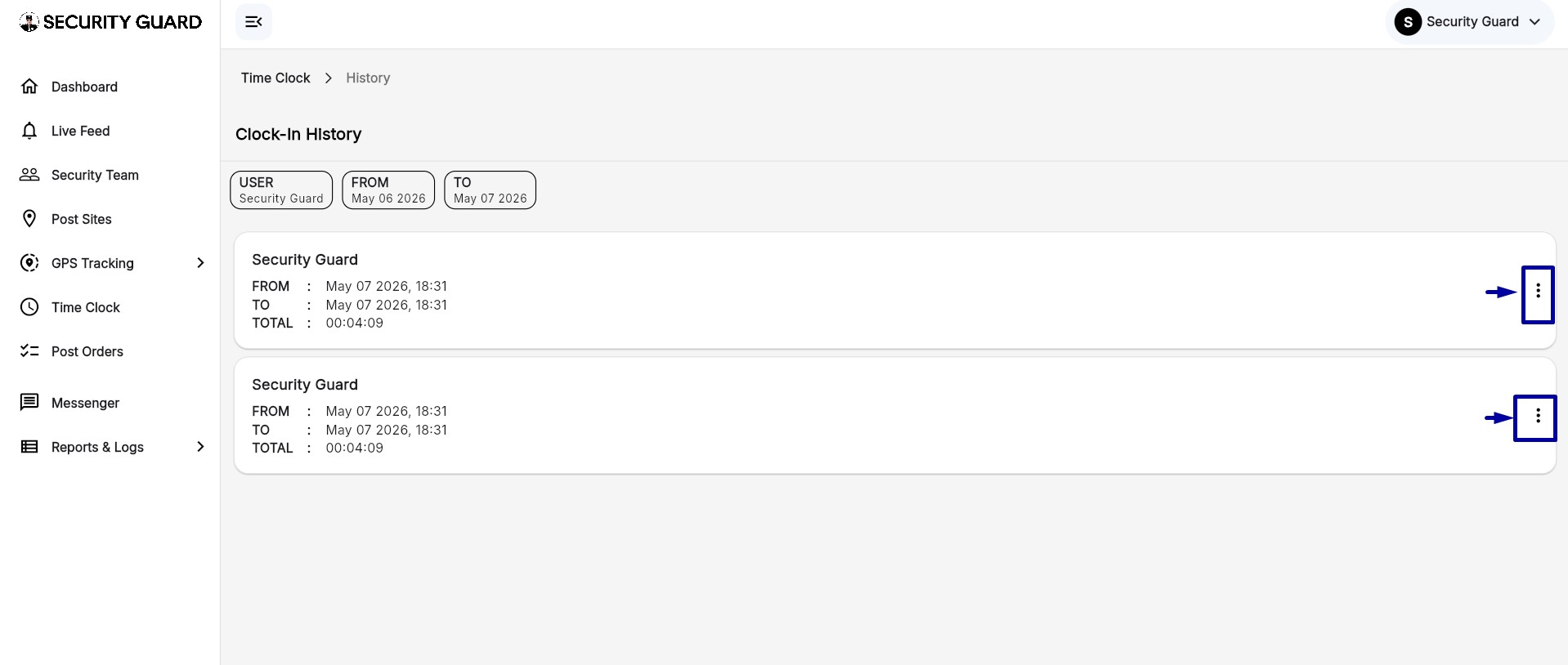
Step 5: View the Clock-In History Screen
The Clock-In History page shows detailed records including:
- Guard/User Name
- Clock-In Time
- Clock-Out Time
- Total Working Duration
- Date of entry
You can also filter records using:
- User filter
- From date
- To date
Use filters if you want to quickly locate a specific guard or date.
Step 6: Find the Entry You Want to Edit
Scroll through the list and locate the specific attendance entry that needs correction.
For example:
- Wrong clock-in time
- Missing clock-out
- Incorrect total hours
Carefully verify the date and user before making changes.
Step 7: Click the Three-Dot (⋮) Menu
Next to every entry, you will see a three-dot (⋮) action menu.
Click this menu to open available options for that entry.
Possible options may include:
- Edit Entry
- Delete Entry
- View Details
Step 8: Select “Edit Entry”
From the dropdown menu, click Edit Entry.
The edit screen or popup window will open.
This screen allows you to modify:
- Clock-In Time
- Clock-Out Time
- Date
- Shift details (if applicable)
Step 9: Click the Pen (✏️) Icon
Inside the edit screen, click the Pen (✏️) icon beside the timing fields.
This activates editing mode.
You can now manually update the incorrect time values.
Step 10: Modify the Clock-In or Clock-Out Time
Update the required timing carefully.
Examples:
- Change wrong AM/PM timing
- Add missing clock-out time
- Correct accidental early/late entries
Make sure:
- The timing format is correct
- The date matches the actual shift
- The clock-out time is later than the clock-in time
Step 11: Click “Update” to Save Changes
After completing the changes, click the Update button.
The system will:
- Save the updated timing
- Recalculate total working hours
- Update attendance reports automatically
A success confirmation message may appear after saving.
📱 On guard mobile app
Step 1: Open the Security Guard App and log in using your credentials.
Step 2: Tap the Menu (☰) icon at the top-left corner to open the navigation drawer.
Step 3: Tap Time Clock from the menu options.
Step 4: On the Time Clock screen, tap the Clock (🕒) icon at the top-right corner.
Step 5: Locate the time entry you wish to edit and tap the three-dot (⋮) icon next to it.
Step 6: Select Edit Entry from the pop-up menu.
Step 7: Tap the Pen (✏️) icon to modify the time.
Step 8: Make the necessary changes and tap Update to save.
Additional tips or notes
Edited entries are recorded in the system’s Audit Log for transparency.
If edits don’t reflect, refresh your browser or app.
Confirm your timezone settings to prevent discrepancies.
If the Edit Entry option isn’t visible, contact your admin for role permissions.
Comments
0 comments
Please sign in to leave a comment.