
On Security Guard Mobile App
To efficiently manage the guard hours on the client site, it is vital that the guards have adequate breaks to keep up the level of productivity and perform with full vitality.
Now long press the Clock In icon. The timer starts counting the total work hours.
To take a break, long press the Take A Break icon, and select the break type you’d want to take. The admin defines the types and duration of breaks the guards are allowed on the post sites. Long press icon to end the break.
On Security Guard Web App
Open Time Clock
After logging in to the web app, click Time Clock from the left-side menu.
Clock In to Start Shift
Click the Clock In button to begin your shift. Once clocked in:
- Total Work shows total worked hours
- Total Break shows accumulated break time
- Shift Time shows the active shift duration
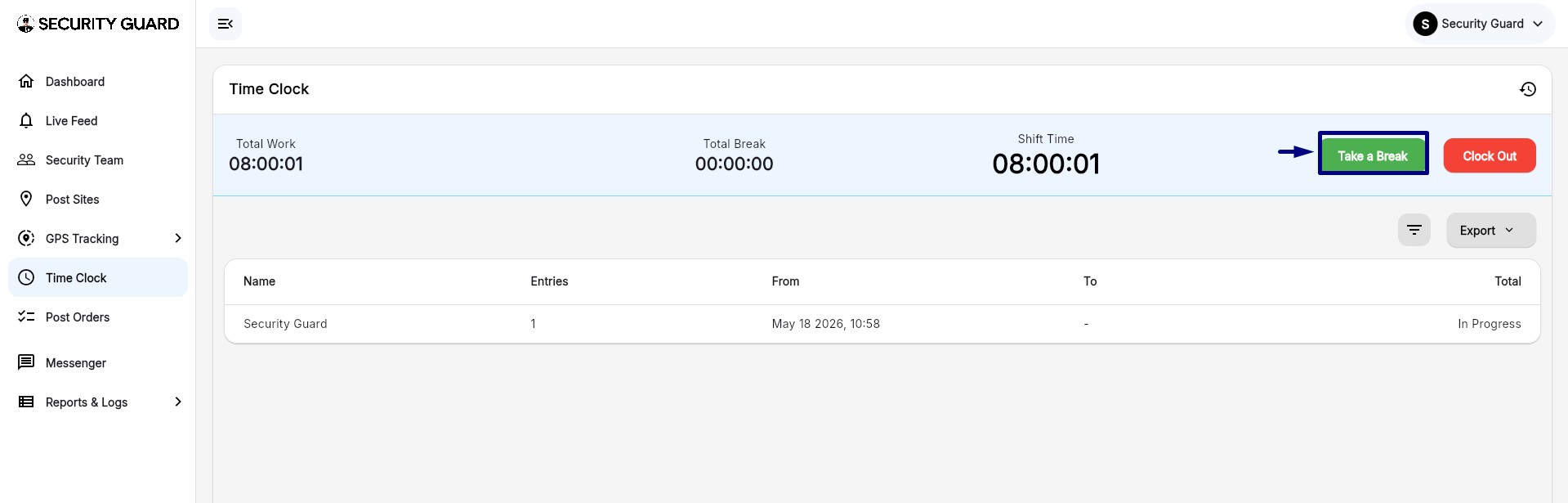 Take a Break
Click the Take a Break button.
You will see the list of available break types configured by the admin, such as:
- Meal Break
- Tea Break
Select the break type you want to take.
During the break:
- The screen displays the active break type
- Remaining break time is shown
- Total break duration continues updating
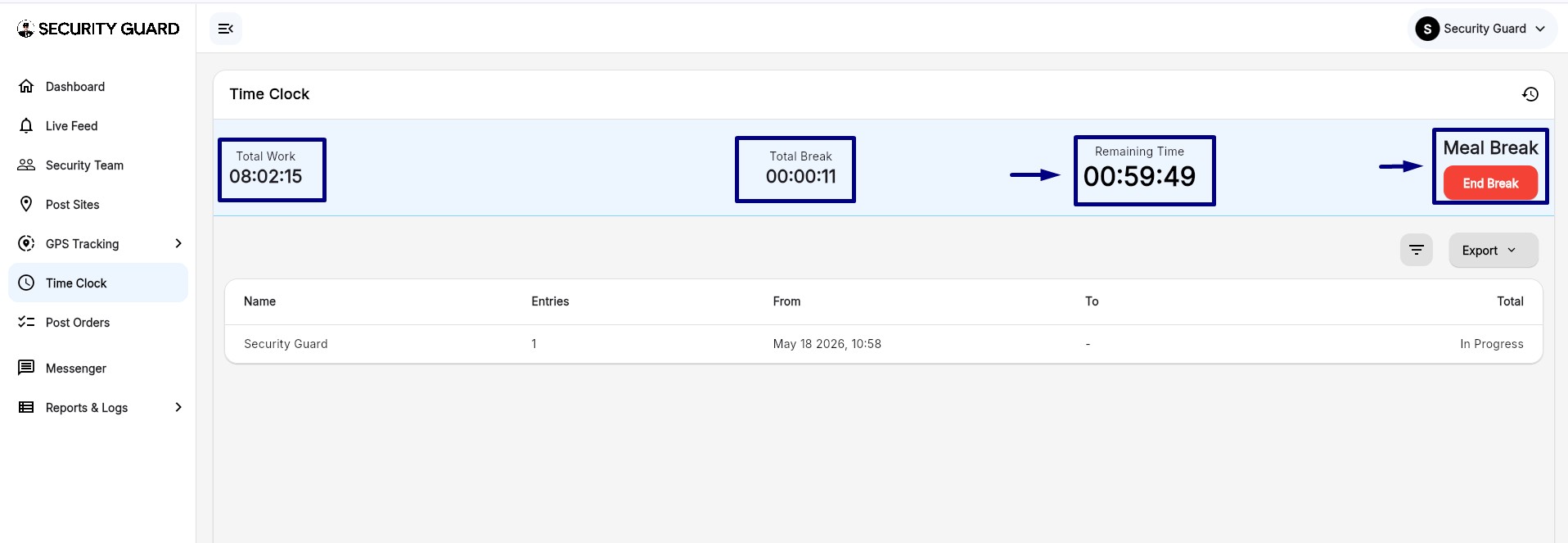 End the Break
To end the break, click the End Break button.
A confirmation popup appears. Click YES to confirm and resume the shift.
View Break and Shift Details
The Time Clock screen updates automatically with:
- Total Work hours
- Total Break duration
- Current Shift Time
- Active/In Progress status
If you have any more questions, please feel free to contact our support team anytime.
Comments
0 comments
Please sign in to leave a comment.