
The time log lists down the details of all the shifts and breaks in chronological order. In case the guard had different shifts on the same site on a day, details for all shifts and the breaks included are shown separately.
On Security Guard Mobile App
To view the Time Log on the mobile app, click on the main menu of the app.
Next, click on the Time Clock, to view current time clock entries.
Further, use the filters on the top right hand corner to view the details for a specific user and dates.
Note: You can also click on individual time clock entries to view shift details.
On Security Guard Web App
Log In to the Web App
Open the Security Guard web app and log in using your credentials.
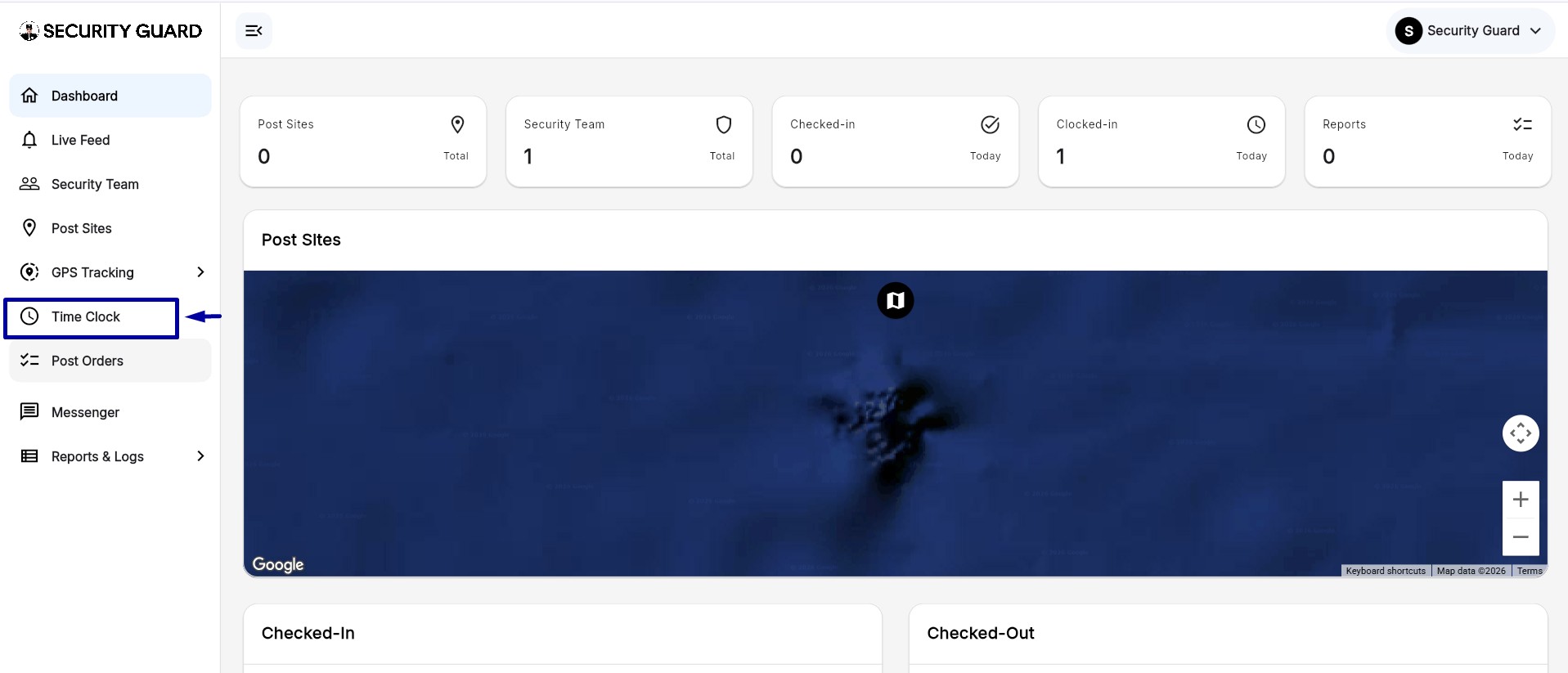
Open Time Clock
From the left-side navigation menu, click Time Clock.
The Time Clock dashboard displays:
- Total Work hours
- Total Break time
- Shift duration
- Employee clock-in entries
Open Clock-In History
Click the History icon located at the top-right corner of the Time Clock page.
This opens the Clock-In History screen where all entries are listed chronologically.
View Time Log Details
Use the available filters to search records by:
- User
- Date range
- Shift entries
You can also click the three-dot menu beside each record to view detailed shift information.
Important Notes
- All time entries are displayed in chronological order.
- Multiple shifts completed on the same day appear as separate records.
- Individual entries can be opened to view detailed clock-in and clock-out information.
If you need additional assistance, please contact the support team through the Security Guard app.
Comments
0 comments
Please sign in to leave a comment.